

Push Notifications
FCM across all three backends. Automatic setup, APNs on iOS, deep links, and images in the notification.
Push uses Firebase Cloud Messaging (FCM) across all three backends. FCM delivers to the device; your backend decides when and to whom to send.
| Backend | How it fires |
|---|---|
| Firebase | Cloud Function on insert into users/{uid}/notifications/{id} |
| Supabase | Edge Function via a webhook on the notifications table |
| REST API | Your server calls FCM over HTTP |
Implementation
Push uses FCM on all three backends. In Quick mode:
- Firebase backend: push is included in the preset
- Supabase / API: in Quick the CLI asks if you want push. If yes, it creates/links a Firebase companion (FCM). If no, there is no companion; you can enable later with Advanced,
--pushvia MCP, orkasy add notifications
Interactive kasy new configures what it can up front. Deferred credentials in Quick: Android works with no extra step on the emulator. iOS needs an APNs Key (all backends). Supabase + REST API need the Firebase service account when the push module is on.
Via MCP: after setup, ask "check my project's push configuration" (check_project) or "check and fix push" (check_project with fix). See Kasy MCP.
iOS: APNs Key (all backends)
The APNs Key only exists in the Apple Developer Portal and needs to be uploaded to the Firebase Console. One key serves every app under the same Team ID.
1. Create the key in the Apple Developer Portal
- Go to developer.apple.com → Keys → "+"
- Give it a name (e.g.,
Firebase APNs Key) - Enable Apple Push Notifications service (APNs)
- Click Continue → Register
- Download the
.p8: you can only download it once, keep it somewhere safe - Note the Key ID and the Team ID (top-right corner of the portal)
Tip: also enable Sign In with Apple on the same key. That way you have a single .p8 for both push and Apple login.
2. Upload it to Firebase Console
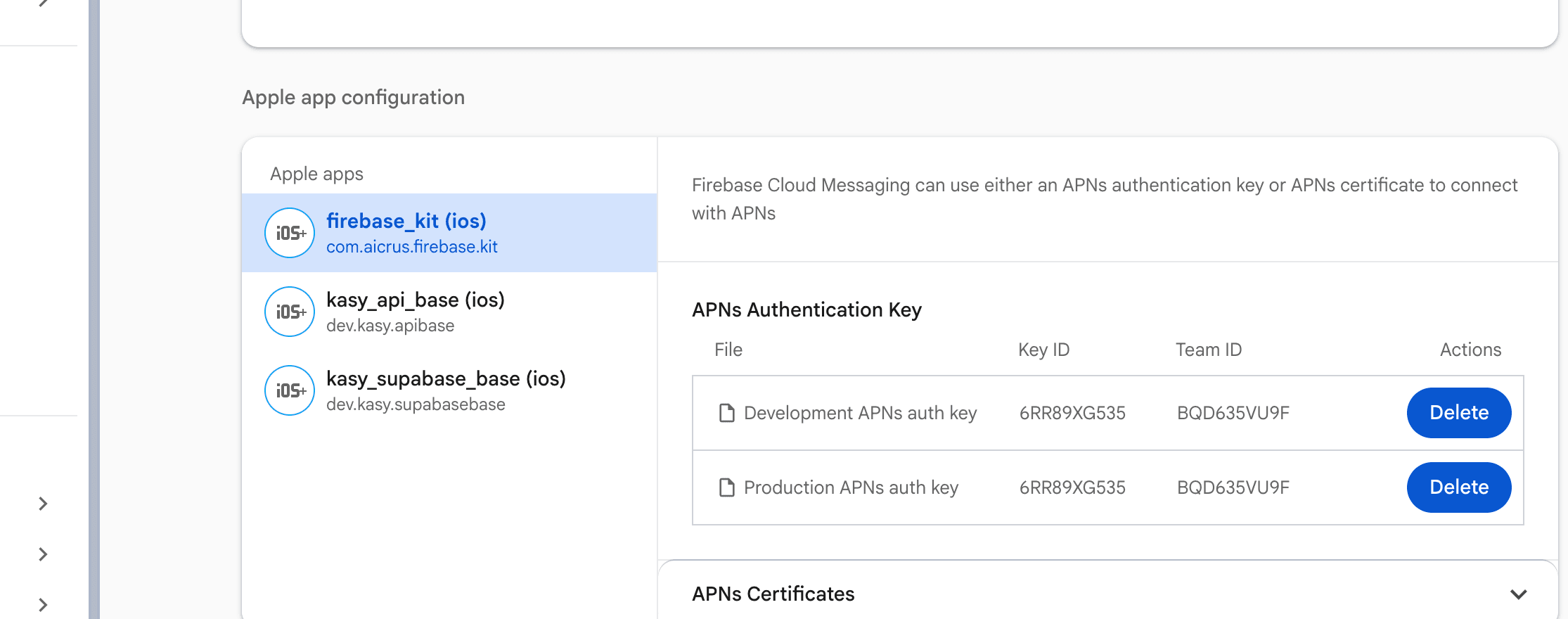
- Firebase Console → Cloud Messaging → Apple app configuration section
- Select the iOS app → click Upload
- Select the
.p8, fill in Key ID and Team ID - Repeat for Development and Production (same file)
3. Verify
Admin Console → Tools → Send test notification. On iOS, the app needs push permission granted.
kasy check          # diagnostics: secrets, edge functions, IAM
kasy check --fix    # fixes automatically
kasy deploy         # redeploy the functions
Via MCP: "check the project" (check_project, with optional fix), "deploy the backend" (deploy_backend).
Supabase and REST API: Firebase Service Account key
On the Firebase backend, push works "keyless" because the server uses the Google Cloud project's default credentials (ADC). On Supabase and REST API, the server is external to Firebase: you need to generate and register a JSON key.
1. Generate the key in Firebase Console
- Open the Firebase Console → your project
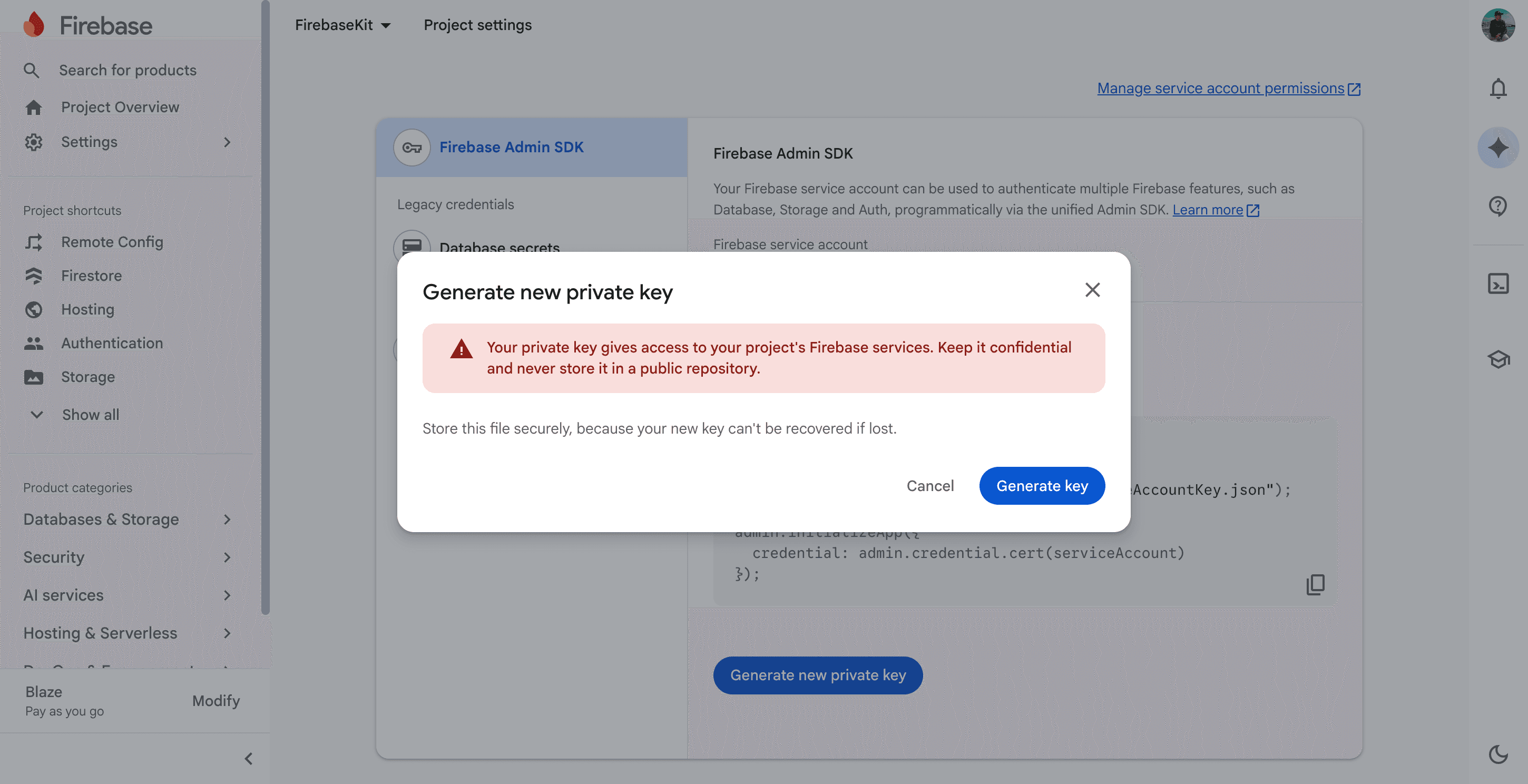
- Project settings → Service accounts
- Generate new private key → JSON → Create
- Save the file (a ~1 KB JSON with
type,project_id,private_key, etc.)
2. Register it in the backend
| Backend | How to register it |
|---|---|
| Supabase | kasy deploy creates the service account and stores FIREBASE_SERVICE_ACCOUNT_JSON and FIREBASE_PROJECT_ID. Manual later: supabase secrets set FIREBASE_SERVICE_ACCOUNT_JSON='<JSON content>' and supabase secrets set FIREBASE_PROJECT_ID=your-id |
| REST API | Load the JSON on your server and use the Firebase Admin SDK (Node, Python, Go, etc.) to call firebase-admin.messaging().send() |
Never put the JSON key in the Flutter app or in the client's .env. It goes ONLY on the server.
Information
Sending notifications
To one user: Firebase (Firestore)
// users/{userId}/notifications/{id}
{
  title: "Title",
  body: "Message body",
  type: "OTHER",
  notify_user: true,
}
To one user: Supabase (SQL)
INSERT INTO public.notifications (user_id, title, body, type)
VALUES ('user-uuid', 'Title', 'Body', 'OTHER');
To all users: Supabase
INSERT INTO public.notifications (user_id, title, body, type)
SELECT DISTINCT ON (d.user_id) d.user_id,
  'Title', 'Body', 'OTHER'
FROM public.devices d
ORDER BY d.user_id, d.creation_date DESC;
From the app (Admin Console)
Settings → Admin → Tools → Send notification. Lets you send to a specific email or to everyone, with an image and a target screen.
Deep link (navigate on tap)
The data field controls where the app navigates:
data | Behavior on tap |
|---|---|
| empty | Opens the Notifications list |
{"route": "/premium"} | Navigates to the internal screen |
{"url": "https://..."} + type: LINK | Opens in the external browser |
The route field accepts any GoRouter path. It works in any app state (foreground, background, closed).
Examples:
-- Takes the user to the subscription screen
INSERT INTO public.notifications (user_id, title, body, type, data)
VALUES ('uuid', 'Offer!', 'Tap to see.', 'OTHER', '{"route": "/premium"}');

-- Opens an external link
INSERT INTO public.notifications (user_id, title, body, type, data)
VALUES ('uuid', 'New!', 'Check it out on the site.', 'LINK', '{"url": "https://yoursite.com/whats-new"}');
Dynamic deep link (e.g., opening a specific post)
Same idea, but with a route parameter:
- Create the route in
router.dart:/post/:id - Send
{"route": "/post/123"}in thedatafield
Each notification points to different content, same behavior as Twitter and Instagram. The plumbing (navigation, back stack, every app state) already comes ready.
Image in the notification
Include image_url with a public JPEG/PNG URL:
// Firebase
{
  title: "Offer!",
  body: "Tap to see.",
  image_url: "https://example.com/image.jpg",
  type: "OTHER",
  notify_user: true,
}
-- Supabase
INSERT INTO public.notifications (user_id, title, body, type, image_url)
VALUES ('uuid', 'Offer!', 'Tap to see.', 'OTHER', 'https://example.com/image.jpg');Shows up as a thumbnail in the system banner (iOS needs UNNotificationServiceExtension, which already ships in the project under ios/NotificationService/).
Behavior by app state
| State | What happens |
|---|---|
| Foreground (app open) | Local banner + notification saved to the in-app list |
| Background (minimized) | OS banner |
| Closed | OS banner; tapping opens the app to the right screen |
Notes
- The Android emulator needs a Google account configured on it to generate a valid FCM token.
- iOS with a debugger attached can block background push. Press
din the terminal to detach the debugger while keeping the app running. - The
.p8key can only be downloaded once: keep it safe.
Last updated on 08/23/2026